Showing posts with label ubuntu. Show all posts

Thursday, May 8, 2014

How to Install Brother Printer on Ubuntu 14.04 via terminal

Preliminaries:

1. Go to Brother Support Page

2. Find your printer's support page for linux (Brother has excellent support for linux)

For example, the network printer for me was HL-5470DW.

3. Download all the downloadables (3 in this case).

Installation:

4. Extract the Driver Install Tool. (Open a terminal, go to the Downloads directory and type the following)
$ gunzip linux-brprinter-installer-*.*.*-*.gz

5. Run the script.
$ bash linux-brprinter-installer-*.*.*-* Brother machine name
'Brother machine name' in my case was hl5470dw.

6. When you see the message "Will you specify the DeviceURI ?",
 For USB Users: Choose N(No)
 For Network Users: Choose Y(Yes) and Device URI.


Thats all. You can now see the printer in your print dialog box everywhere.


Thursday, November 28, 2013

GNUplot Tutorial for beginners (on Linux)

GNUplot is a versatile graphing and plotting tool which is more than sufficient for all your graphing needs. Some of the impressive features that I appreciate are:
  • It provides great flexibility when you want a script to automate your graphing. I had to run several hundred simulations and plot the data for each and every one of them. Without GNUplot, i could not have done it.
  • It can produce graphs in many different formats (both in vector and raster formats)
  • It has nice curve-fitting tools
  • It is free!
Here is a very simple tutorial for beginners that should get you started. If you are looking at something that has a more exhaustive coverage, you can check this: duke.edu GNUplot tutorial  or go to official GNUplot site for help.
So, lets get started.

Wednesday, November 20, 2013

Managing Multiple Terminal Windows in Ubuntu 12.04/Linux

If you are working on a big project with large directories containing several source files, then there is a good chance that you might need multiple files to be open at the same time. And if you use vim editor or rely more on terminal (CLI) in a linux environment to accomplish your work, then you definitely would have felt the need to manage the multiple terminal windows that lay scattered around all over the desktop. I tried other options like terminator etc., but my friend recently introduced me to Byobu, and I find it to be the best and straightforward option to manage multiple terminal windows.

To install Byobu:
// Install byobu
% sudo apt-get install byobu

To use it:
Open a terminal window (Cntl+Alt+t)

// just type byobu
% byobu

And, now use the following key-bindings to create new terminal window panes and navigate between them.


       F2 - Create a new window

       F3 - Move to previous window

       F4 - Move to next window

       F5 - Reload profile

       F6 - Detach from this session

For more key-bindings and info, go to: http://byobu.co/documentation.html

Here's a screen-shot of how i looks:


I hope this helps. :)

Saturday, January 12, 2013

Solution: Windows Live (Hotmail) not working properly in Ubuntu 12.04

As NTU mail is hosted on Window Live (Hotmail), I was having this problem when I tried opening my mails in Ubuntu. This seems to be some compatibility problem where Windows Live refuses to recognize operating systems other than Microsoft Windows. However, the good news is that there is a way around this. Install the Firefox add-on called 'User Agent Switcher'. This will allow Firefox to mimic as if it is running on Windows and hence solves the problem.

  The same works for Google Chrome as well. Install the extension called 'User-agent switcher'. Once installed, it will sit right next to the address bar. Click on it and choose 'Chrome on Windows' and it should work just fine.


Tuesday, January 8, 2013

Installing Dropbox on Ubuntu 12.04 in 4 easy steps

       To my surprise, using Ubuntu Software Center to install Dropbox didn't workout. So, I was looking out for alternatives. I tried many options from Ubuntu forums which included command line options, but none worked. Finally, I reverted back to Synaptic Package Manager (SPM) and it was the easiest and also worked like a breeze. Here are the steps:
(Note: If you don't have SPM, you can esily install it from Ubuntu Software Center.)

1. Open SPM and type 'dropbox' in the search box and mark the first option for installation.


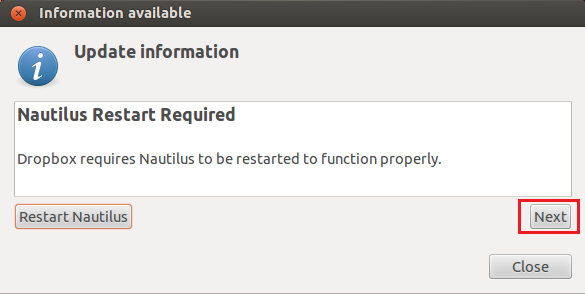
2. When prompted with the screen shown below, click Next
 dropbox_precise
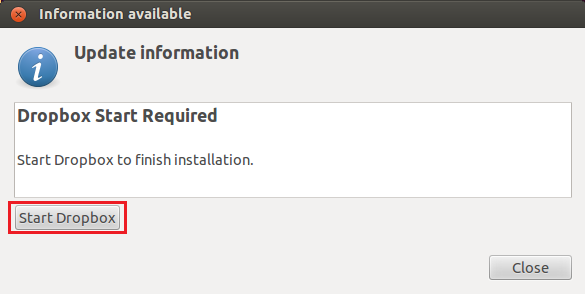
3. Then click ‘Start Dropbox’
 dropbox_precise_1
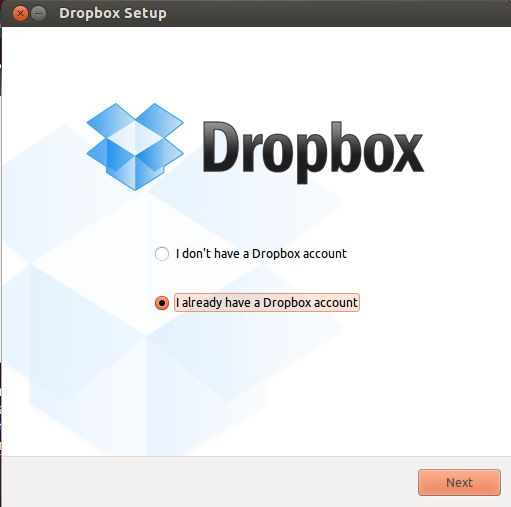
 4. Choose your option as shown below and begin downloading and installing Dropbox.
 dropbox_precise_2
And thats it! Have fun.

Saturday, September 15, 2012

Rookie's Journey Through Linux

Its almost after 5 years that I am coming back to Linux, so I find myself only as good a rookie. 5 years ago it was for my c/c++ undergrad courses that I had to use linux. And a few months back, I had a short stint with the RedHat Linux for Cadence Virtuoso. But as I said, it was only a short stint. :)

  I thought I would document my step by step evolution and experiments with Linux and other softwares that I may use with it. To be frank, I am no expert and I would request readers to point out any mistakes or misconceptions that may creep in!

 I got Ubuntu 12.04 (Precise Pangolin) distro on  VMware Player 4.0.4. I would suggest using VMware Player only if you have sufficient RAM on your PC. I assigned 4GB RAM for the virtual machine but I guess 2 GB is also good enough. Anything less than that may be give you less than desired performance.

Ubuntu 12.04 on VMware Player 4.04